The WordPress themes and plugins market is huge these days. With all that wide range of products available, we sometimes stumble into situations where we’d like to change our mind, i.e. use a different plugin or theme instead of the one we’re currently using.
Eventually we figure out that it’s incredibly tough to replace some of the themes and plugins, because as soon as they’re deactivated, all (or part) of our data is lost, and the new theme or plugin that was supposed to replace the old ones, doesn’t see the data we previously had. So we say that we’re locked in.
This post describes the lock in effect, shows you some methods to identify such themes and plugins. Plus, if you really do have to use one such theme or plugin, we’ll cover some tips on escaping or locking yourself out.
The Lock in Effect and why it Matters
The lock in effect is not a WordPress thing, it’s been around the software industry for ages. A good example is Microsoft Excel versus OpenOffice.org Spreadsheet. The two are somewhat compatible but you’ll still notice that not all Microsoft spreadsheets will open and render fine in OpenOffice, that’s because Microsoft locks you in.
Take Adobe Photoshop and the open source Gimp package. It’s quite difficult to read PSD files in Gimp because of the layers madness, effects and a bunch of other stuff that only Photoshop can read. That’s because Adobe locks you in. Sometimes you’ll have a hard time opening a CS4 file in CS3 or earlier, that’s a lockin as well.
Although Microsoft and Adobe are trying really hard to provide backwards compatibility and compatibility with other software where possible, we should understand that it’s not entirely possible especially with complicated software like that. In each new release new features are introduced which are not easily portable to other packages and older versions.
WordPress has been known for its backwards compatibility for ages. In fact, you’ll not loose your content when you downgrade (provided that you’re using the core features only,) plus WordPress provides several export options that can easily be read by other software and services. WordPress gives you control over your data so you’re never locked in to using WordPress itself. WordPress does not lock you in.
Plugins and themes are somewhat different though, mainly because developers are overlooking the WordPress API and a bunch of features which already ship with WordPress, and tend to reinvent the wheel. Another situation is where plugins or themes introduce some brand new features unavailable in WordPress so they store your data in a unique way which is not what other themes and plugins can understand. If not treated well, the lock in effect can cause loss or corruption of your data, but there are ways to escape it, which we’ll discuss later.
Identifying Themes and Plugins that Lock You in
It’s somewhat tough to identify such themes and plugins. You’d have to sit all day long browsing the different repositories, reading the code, forums and comments, testing each plugin out. Obviously we don’t have the time to do that, so here are a few tricks to speed up the whole process.
Custom Post Types
Let’s say we need a new portfolio website, we’ll go looking for portfolio themes in the WordPress repository or marketplaces. Now, “portfolio” is not a core part of WordPress (while posts and pages are) so a theme like that can create a new post type called portfolio with the title, description, permalink, gallery and other features. Although this is perfectly fine when using the theme itself, in a couple of months we decide to look for a different one.
The new theme is also a portfolio theme with a custom post type too, but registers the custom post type as portfolio_items and as soon as you activate the new theme, you’ll see that all your old items are gone. Bad!
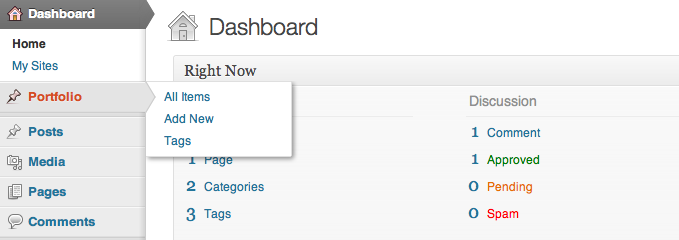
You can easily identify if a theme creates a custom post type by looking at what’s available in the main menu in your admin panel. If you see a new entry, note that it might be available with that theme only and not portable to others.
Post Meta Data
Custom fields are not new to WordPress and many themes and plugins take advantage of that to store additional data associated with a post (or any other object.) While it’s a good technique, keep in mind that there are no naming conventions for meta data keys.
Suppose a theme gives you the additional option to “hide the title for this post” and stores it in the meta table with the hide_title field, cool! But as soon as you deactivate the theme and use a different one, your hidden titles are now all shown. You start looking for a plugin and find one that hides the titles and it works. Unfortunately though, it stores its data under the hide_post_title meta key so you’ll have to edit all your 2,000 posts and hit those checkboxes again. What a nightmare!
New Database Tables
This is one of the worst lock ins, and a good example in this field would be a gallery plugin that creates its own table(s) in the database to store the images data, and what’s worse, its own folder in your wp-content directory to store the image files. Escaping such lock ins is pretty tough, even for experienced developers since they’ll have to deal with SQL and the filesystem.
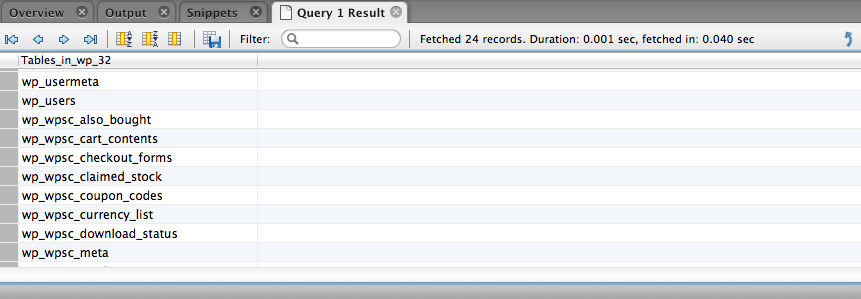
You’ll easily identify such plugins by looking at the list of tables in your database and comparing it to the standard WordPress database schema. Note that there are exceptions though where additional tables are necessary. A good example is BuddyPress.
There are other things to look out for, like custom shortcodes (very popular in the themes market) and buttons in your visual editor, data stored in text or XML files. Although I consider all of the mentioned above a “bad idea”, I understand that sometimes there’s simply no other way than to use such a theme or plugin. Do look for alternatives though, before making your final decision.
Choosing Alternatives
It’s impossible to find an alternative to BuddyPress, or to that super cool events registration plugin that you’ve found. Or a portfolio theme that you really really loved.
But it’s fairly simple to find an alternative gallery plugin that would leverage the native WordPress galleries and use the already existing functionality and build on top of that. Try deactivating it and see if you can still see your images in the media library.
It’s fairly easy to find (or create) a plugin that would bring a set of new shortcodes to your WordPress setup so you won’t have to worry about loosing them when you switch themes, although it will lock you in to using this new plugin.
In any case, plugin lock ins are more loyal than theme lock ins, because you won’t change your set of plugins once every x days/months/years, but you will look out for other themes. So when looking for a theme try and find something that doesn’t ship “with everything”, especially things like SEO options, etc., because that’s the stuff you’ll want to take along with you after you switch to a new theme.
This is why you should prefer a WooCommerce plugin with a compatible theme, rather than a theme that comes with all the shopping features built-in. It’s easier to find another theme that’s compatible with the WooCommerce plugin than it is to find a theme that implements the exact same features in the exact same way. WooCommerce will lock you in to using WooCommerce though, but that’s something you should be able to live with.
Avoiding plugin lock ins is more difficult, but if you do find a couple of suitable ones, do compare the two, see how they store and handle your data. See if they have an export option and see if you’re skilled enough to liberate the data if they don’t.
Locking Yourself Out
Okay this part is quite geeky. I believe that’s it’s possible to lock yourself out of any theme and plugin in 99.9% of the cases, but you’ll need some PHP and SQL skills to do that. Keep in mind that if you have deactivated a theme or plugin, it doesn’t mean your data is all gone, it’s probably still in the database (or wherever) but WordPress just doesn’t see it.
Get familiar with the SQL syntax and make sure you backup everything before trying to escape a lock in. Next, experiment, experiment experiment. If your old plugin has used hide_title and your new plugin uses hide_post_title, you can easily run an SQL UPDATE statement on the post meta table to rename the existing keys. If your old theme was using a portfolio post type while your new theme is using portfolio_items, you can run an SQL UPDATE on the posts table and change the post type of all your old portfolio entries.
Escaping things related to files (like that gallery plugin) is more difficult, you’d have to create a php script that would run through all your existing gallery images and copy or move them into the correct directory, creating an attachment entry for each. Then run through all the posts that reference the old directory and replace the broken links. This is quite difficult and can easily get messy, but that doesn’t mean it’s impossible.
In any case, you’ll have to read through the code of the old and new themes and plugins file to figure out what they’re doing differently, then try adapt the existing data to the new ones. But, again, make sure you always have a complete backup of your files and database, because things can go wrong any time.
That’s all folks! I guess that’s enough information to think about and be more careful when choosing WordPress themes and plugins. Use the comment form below if you have anything to say and feel free to ping me on Twitter too!

This problem is even more pervasive than articulated here. The theme options of many commercial themes create functionality unique to that theme and then if you want to make a change, boy are you screwed. We see this problem with clients all the time.
Correct, and that is why companies like WooThemes are building frameworks or platforms, which gives you a much wider choice on themes, but you’re still locked into using their collection, which is good for them, but not too good for the end user. Yet, end users tend to pick themes with the largest amounts of theme options and features, shortcodes, page templates and custom post types.
Yet again, if you remove all those possibilities from theme developers they’ll have less “marketing material” to promote their themes, which is good for the end users, but not for the theme developers. I personally think that theme developers should focus their brains on theme design rather than features, or start building portable solutions, maybe as plugins that would work with other themes.
It’s a good scenario but hard to achieve. I had a talk with a few folks about theme standards a couple of weeks ago, and turns out that it’s still a huge problem in the commercial themes market, and that definitely is a bottleneck or as they like to refer to it “blocker” :) Thanks for your comment Diane!
This is just the topic that arrose when Yoast created his WordPress SEO plugin. At first it was not compatible with the Thesis theme and it’s custom SEO settings. Then someone made a plugin to “liberate”/transfer data between plugins.
It would be neat of, if ever you purchased such a custom theme, to at least have some fallback support to custom functions.php if you ever decided to change your mind. I think such a simple compatibility service could create a lot of good will, even if it would mean you’re betting against your own theme store.
Stijn, didn’t know about that situation, thanks for the heads up! As for fallback support to custom functions.php, you probably missed my earlier post called Plugins vs. “without a Plugin” which has some really good discussion in the comments (if you have time.)
I do agree though that everybody who takes theme and plugin development seriously should consider creating ways to liberate the user’s data and use it elsewhere, preferably not as an SQL dump, because that we can do ourselves :)
Thanks for your comment!
Great post (as usual) Konstantin!
I just wish that theme/plugin authors to not being too smart :) I mean, why would anyone create hundreds of DB rows for a single theme/plugin? Oh, and I’ve seen a plugin that adds like 3 new tables when they’re clearly not needed and should’ve used posts and postmeta tables.
I guess many of us are just too lazy to go through the core source code. I rarely visit the Codex these days (unless I need some example codes) because for me the inline docs are very clear and more than enough.
And about Woocommerce, why would they create those additional pages without my permission? It would be nicer if they just give us the option to chose which page to use for checkout, etc without having to create new ones. Think about existing site that need to add new ecommerce section/feature…
Anyway, what happened with theme.fm Konstantin? :)
Dzikri, I agree that the inline docs are very useful if you can find your way through, but the Codex is something we all have to contribute to, improve it and make it easier for everybody else to use and understand.
I’m not experienced enough with WooCommerce to answer your question, but I think there was a good reason behind that decision. You can’t expect everybody to be a code monkey. I might be wrong :)
Theme.fm has been paused for the time being. I can’t say much about it yet, but I do believe that somebody’s gonna do something awesome with it. Thanks for stopping by and have a good day!
[…] You are here: Home > Links > The “Lock in Effect” for themes and plugins PermalinkThe “Lock in Effect” for themes and pluginsBy Ryan Imel 1 min agoJanuary 11, 20120 var addthis_product='wpp-262';var […]
Sure it’s bad to try ‘lock’ someone in purposefully.
But at some point the user has to give up that right once his programming knowledge is depleted.
Foxinni, right, but then again, my programming knowledge is okay but I’m still trying to figure out the best way to escape the NextGenn Gallery plugin which adds database tables and files and folders in an external directory, plus uses a shortcode to display the galleries.
I’m not saying it’s impossible, I’m just saying that figuring out a good solution can be time consuming and quite tricky, and the plugin author could have saved some of that time for me. Thanks for your comment!
Hi @Konstantin:
I think you are being too hard on the theme vendors like WooThemes.
One of the reasons Woo and others must do what they do is because WordPress core has the “decisions not options” and “that’s plugin territory” culture. Since there is often no internal API support for more advanced features, especially when those features are requirements of the customer, the theme vendors are left with little choice but to include the functionality in their themes. It would otherwise be impossible to provide the features that their customers want and need.
You argue that theme developers should focus their brains on theme design rather than features but I’m reminded of an early dotcom-era IBM commercial where the web designer was showing the older business man how “I can make it spin and change colors” and the frustrated old guy asked “But can it manage my company’s inventory?!?”
You also argue that themes could create plugins that people could continue to use if they swapped themes but there again WP core doesn’t provide support for a theme to seamlessly load a plugin and thus splitting extra functionality off into a plugin provides a poorer UX which AFAIK is contrary to the WordPress ethos too.
In other words, damned if they do, damned if they don’t. Until WordPress core cares addressing some of the issues it’s not going to get better. FWIW.
Hey Mike, thanks for your comment! I don’t think I’m being too hard on companies like WooThemes, in fact:
So what I was trying to say is that WooThemes is actually going in the right direction with their e-commerce solution and the Woo Framework, it standardizes some of the things making themes compatible with others. They do lock you in into using their products, extensions and themes, but they also give you choices. It’s not like that one theme you purchased from a marketplace.
The React theme from The Theme Foundry is a good example of a portfolio theme that does not lock you in. In doesn’t use any additional post types, meta, etc., it functions on post formats, so if you switch to a new theme, all your Gallery posts are still there, and if the new theme does not support the Gallery post format it’ll display them as regular posts, but not loose them like other themes do. Nice quote from the IBM commercial :)
Themes can easily run a check for
function_existsor even better apply a filter unique to a plugin to check whether a certain plugin is activated. If not, ask the user to install and activate it, a good example is a WooCommerce theme and the WooCommerce plugin powering the theme. If the user can’t or doesn’t want to install the dependency plugin, you can always keep the theme working by not using the features provided by the plugin. I know this isn’t the best user experience, but think in the long run.Thanks again for stopping by, hope my comment makes sense. Cheers!
Thanks for the clarification; sorry that I misunderstood your take on WooThemes.
After reviewing your comments though I think maybe instead of being too hard on people maybe you are being too idealistic. People add plugins or use themes because they given them the features they need.
To focus on ensuring there can be no lock-in is also to focus on there can be no features that WordPress core does not provide. In the US some of us have a saying that relates “Besides that Ms. Lincoln, how was the play?” (for those non-US people, this[1] link might make the saying more clear.)
Continuing the thought, I think the real culprit for plugin and theme lock-in is a WordPress core that doesn’t offer the features needed to enable themes to implement features without such a negative UX and feature that can set any data free.
Anyway, I hope my comments add to the discourse.
-Mike
P.S. BTW, what’s the problem with “plugin lock in?” Since we can use more than one plugin why do you see it as issue if a plugin has it’s own data? Actually, how could any plugin that persists any data achieve the standards you are setting?
[1] http://en.wikipedia.org/wiki/Abraham_Lincoln#Assassination
Mike, no problem, thanks for your input! As for your plugin lock in question I agree and, as I mentioned in the post, it’s not a big deal often times, because, as you said, you can run several plugins at once. However there still are times when you want a different one and a good example is the gallery one I referenced in a previous comment. It’s not that it’s not working for me, I just don’t like it anymore and don’t want to use it, I’d rather go for native WordPress galleries if you understand what I mean.
Sounds like we agree on much! So, I think the question is “How do we resolve that issue without ‘throwing the baby out with the bathwater’, and who best to tackle it?” I know what I think we need, but would like to hear your thoughts first, if possible?
I’ll reply to your comment below as I believe the context would be better.
I recently saw an interesting development on lock-in. Alex King/Crowd Favorite are developing an Admin user interface for using post formats. It defines custom fields for some of the post formats and makes it easy to create posts using post formats. This creates a lock in, at least it would, if they didn’t also develop a fallback plugin that pulls out the custom fields and displays them in post for themes that don’t support custom post formats.
Brent, that’s very cool indeed! Interesting though that if your theme doesn’t support the custom fields, you’re now locked in to using two plugins and if you drop one of them, guess what — your data is now gone.
Well it’s not really gone, it’s there in the post meta fields, you just can’t see it, and you won’t until you figure out the meta keys by reading the source code or docs of the two plugins. Then you can run a database query and get rid of the leading underscore in their keys that make the meta fields protected, and finally be able to see your data through the WordPress native Custom Fields interface. Escaped, hurray!
So my point is that when locked in, I’m not really worried about the features that you’re going to loose, I’m worried about the data that you might end up loosing. Cheers and thanks again!
Good point!
Support for typical extra fields to support custom post formats really needs to go into the core. Then, I could change themes and be confident that if it supports post formats, that it will use the same custom fields.
I’ve long railed for theme modularity. WordPress would be exponentially improved if theme options became core and they could be extended through a series of plugins.
There’s no reason that I need to spend several hours to install every new WordPress theme I purchase. Although an infinite theme option ecosystem does create a great economy, I’d happily give up to be able to work quicker and to be able to transfer content seamlessly from one theme/site to another.
Jason, the WordPress API provides a great way to standardize options pages and allows themes and plugins to hook to those pages and extend them if needed. It’s called the Settings API. Now, if only all the theme developers in the world could agree on a set of settings keys and their typical values, things would get much easier, but the fact is that WordPress already provides all the necessary APIs to do this and the problem is that most theme developers keep reinventing the wheel.
Thanks for stopping by and hope my comment makes sense. Cheers!
The Setting APIs is effectively a syntactical standard; that’s necessary but not sufficient. What’s more important is a semantic standard. For example, if one theme calls an option_name ‘column_count’ and another calls the same concept ‘num_columns’ then we really don’t have a standard at all.
WordPress provides the necessary mechanisms needed but the WordPress “steering committee” (for lack of an official name) doesn’t do anything to provide the direction. (I’ve been pointing this out for almost 3 years now…)
Cool! I understand your point, that’s what I meant when I said:
As you suggested though this may be an opportunity for the WordPress steering committee to jump in, which they’re doing to some extent. Take a look at navigation menus, background color and image, header images, they weren’t there since day one, right? So the question is how do we push this through? :)
Thanks for your comment!
I think the first thing is to recognize is that standards are critically important. I’m sure it’s something discussed among the team but I don’t think it’s in the DNA, at least not yet.
I am and have been my entire career passionate about (defacto-)standards, but it takes leadership to ensure things go in the right direction. Certainly there was a glimpse of recognition for standards with post formats, but it was only a standard the core team defined, there were no community mechanisms used to allow the broader community to contribute to the post format standard.
One thing that’s needed for good standards is core APIs, but its been made clear that WordPress doesn’t add an API unless they plan to use it in core, and that by definitely severely limits what APIs might get included. And since APIs by nature need to be standardized, such as a media gallery plugin, that pretty much means plugins won’t create a successful API and thus it results in the type of issues you are writing about.
FWIW. :-)
Okay so here it goes. I’m totally with you on the standards thing in the core, but before rolling out post formats, the core team and everybody else have discussed how they should be implemented and what formats should be supported. I agree that the core team makes the final decision, but the core trac is open for everybody :)
However, post format is a standard they have already defined and I think it’s working out pretty well. Note though that post formats don’t use the meta table at all. On the other hand, flexibility is one of the reasons people tend to choose WordPress, so on to custom post types.
Say, how would one “define a standard” for a portfolio post type. What are the extra fields and taxonomy? Type, skill set, name, category, client name, client URL, client job title, client quote, image or several images, a banner, an excerpt, starting and ending dates, I could go on… And portfolio is not anywhere close to a complex post type. Think real estate!
This is why most people still think WordPress is a blog, right? Because they gave us the basics. But they’ve also given us the tools and APIs to go far beyond the basics.
I might have gone a little bit off topic here, but I think that specific niches have to be tackled by specific companies and create frameworks, but not the type of all-purpose frameworks and parent themes we’re used to. WooCommerce is a good framework for e-commerce themes, AgentPress by StudioPress can make a good framework for real estate themes, Theme Force can go for a nice framework for restaurant themes, and so on. It’s important though to keep in mind that these frameworks should be free and open source, that’s when developers will start adapting and building upon.
I stress this again, WooCommerce is a great example of such a framework and I think that it will only grow, together with WooThemes and third party developers who have adopted the product. I also have a feeling that third-party developers (combined) will make much more money on WooCommerce than Woo themselves.
Phew! :)
I think now you misunderstand my point, about post formats. :-)
Yes I think the post format standard was a good thing, a first such standard in WordPress. But it didn’t go far enough IMO because it was still the core team deciding and not a community process deciding. It’s like the difference between a boss who listens to all employee input and then decides vs. an electorate that casts votes on a ballot initiative. Sometimes you want one thing, sometimes you want another, but when it comes to base standards you need a stronger community process to ensure that people with more varied experience have an actual say in what gets implemented. So while good, I think it could have been a lot better. But I’ll take the baby steps too. :)
(As a side note, the use of taxonomy vs. meta is hardly different from a “lock in” perspective; are you saying it’s okay if a theme uses a taxonomy in a non-standard way? Also, I’ve come to believe that post formats were really a bad idea in hindsight, but I digress…)
As for portfolio, a standard should not define all things to include, only the most common. If you were to take 10 portfolio implementations you would find a common pattern for a significant percentage of functionality differing only by arbitrary implementation choices. Gather a group of people who care about portfolios and via a community process create a 1.0 base standard for a portfolio post type. Then all themes could potentially implement support for “Portfolio Post Type 1.0”, and some themes could innovate and add more features.
Don’t think that would work? It’s exactly how HTML and browsers evolved. Someone created a defacto HTML standard then browsers implemented it and started innovating with extensions. Then standards processes emerged to reign in the extensions as people continued to recognize more and more common patterns in use. And now we are 5 versions in, why not for Portfolio Post Type too? :)
WooCommerce and AgentPress are not good examples here because they are products, not base APIs. Dan Milward is not going to build e-commerce solutions on top of WooCommerce but he did rewrite WP e-Commerce to support custom post types. And Adii is not going to rewrite Estate Theme to support Genesis or any aspect of AgentPress. But if there were a “Real Estate Listing Post Type 1.0” base standard that the core WordPress team or the WP community got behind you can damn well bet that both Adii and Brian would migrate AgentPress and Estate to it.
To be clear, products like WooCommerce and AgentPress are good things, but they are not the basis for a standard.
P.S. I do appreciate how respectful you are in your replies and am enjoying the discussion.
Mike! Wow this is getting quite long, I’ll try to be brief though. I agree with you on the community process, it could be better and I think that the core team are working in that direction, starting from not so crucial decisions, like this one.
I didn’t suggest taxonomies are safer than post meta, sorry if it sounded that way :) both can easily cause damage. I can’t say much about your standardization idea. As much as I’d love to support it, I think it’s going to be very, very difficult to even get it going. I do understand your concerns about Woo and StudioPress, commercial products are difficult to adopt. I also think that in this situation we can learn a lot from BuddyPress and bbPress. They’re not part of the core, but strongly supported by the core team (having teams of their own.) So who’s going to create a PropertyPress, FolioPress and CommercePress ( anyone wanna fork WooCommerce? ;)
Jokes apart, what do you think? Thanks so much for this discussion!
Wherever core won’t provide leadership we plan for our Sunrise project to provide leadership as an alternate. Remains to be seen if we’ll succeed, but that’s our goal. (BTW, Sunrise is a 5+ year plan and we are ~1 year into it.)
I think the way we push it through is for the people who lead WordPress to decide it is important. Either that or a collation of vendors could do it. But I don’t have high hopes for either.
The bit Mike Schinkel mentions “damned if they do, damned if they don’t” hits a good point with this whole “too many options” debate.
Like many developers, I fully agree with your points. But like many developers, we tend to forget that 90% of the user-base are people who are completely clueless when it comes working with their themes. The big buying factor for these users is the ease of use in terms of customizing and modify their sites. They don’t want someone telling them, in order to change their background image/color or font family, that they need to modify their stylesheet. They want to be able to click around to change their stuff and be done.
I’ve handled support for some premium Tumblr themes for the past year and can tell you that simplicity is one reason that Tumblr does so well. Granted, it’s a horrible system and a nightmare to support themes for, but the main point is the users want simplicity in updating and modifying their blogs. Some users I’ve encountered don’t even know what HTML is. So having options for them to update their blogs is a very essential element.
So the moral of it is, IMO, you have to give the customers what that want and need. But maybe what developers should do is think their options through a bit better. A great article on ThemeFoundry kind of goes into that a bit: http://thethemefoundry.com/blog/from-the-workshop-dont-steal-my-theme-options/
Anyhow, just my 2 cents.
Ryan I agree with you on everything you said, and thanks for sharing the article. However, if I had to picture myself as an end user, instead of being worried that somebody’s stealing my options, I’d say do whatever you want, just don’t steal my data. And when I say “you” I’m talking to a theme so don’t get me wrong ;)
It’s okay if you hide my breadcrumbs, and it’s fine if you take away my color options. It’s fine if you can or can not change my fonts and their sizes. It’s totally okay if you give me a one column layout and hide my sidebar, as long as you don’t destroy my widgets configuration. But it’s not okay if you destroy all my portfolio items, or loose all my gallery pictures.
So give the users as much options as they would like or need, do fancy theme options panels and on the fly styles editors a-la SquareSpace, but don’t mess with their content, because that’s rude.
I’m not trying to say that theme options panels are good or bad. As mentioned earlier, I believe there is a problem there at that end, which we need a solution for. I also think that the data issue is far more critical and has to be addressed first.
We would be crazy happy if each theme and plugin came with a data liberation document, similar to how Google has the Data Liberation which explains how to get your data out of each and every Google product.
Thanks for stopping by, hope you’re having a terrific day :)
“It’s okay if you hide my breadcrumbs, and it’s fine if you take away my color options. It’s fine if you can or can not change my fonts and their sizes. It’s totally okay if you give me a one column layout and hide my sidebar,…”
Clearly you haven’t worked with certain types of clients yet. Some of them will hit the roof with the tiniest thing is missing. :-)
… but don’t mess with their content, because that’s rude.
I agree there. With that comment you make me think about custom tables vs. custom post types. I think it really is rude to create custom tables in plugins for content, so content in custom post types of actually a good thing. Even if the registration goes away, it’s easy to get data back with general CPT plugins.
OTOH, when things that are really needed like a post relationships table are ignored by core it forces themes and plugins to create custom tables in order to implement features that users need. Core really is the one that needs to provide the leadership in places like this.
We would be crazy happy if each theme and plugin came with a data liberation document, similar to how Google has the Data Liberation which explains how to get your data out of each and every Google product.
There I think you are on to something. But instead of a document, why not an Data Liberation API?
Great discussion there! I don’t think it was ignored though. I know Jane could seem a little harsh sometimes, but I totally agree with her on this comment. Scribu’s Posts 2 Posts plugin didn’t gain much traction so bundling something into the core that say only 1% would use is not feasible, we’d rather have them working on something more useful to a larger audience, right. Yet such relationships are still possible, just not in the core :)
I remember I worked on a gaming site where games had to relate to blog posts and vice versa. I just used a post meta key called related_to and the post ID as the value. I know the post meta table doesn’t provide the best indexes, but it wasn’t a huge set of data, and not the busiest site on earth, plus caching was awesome, so I didn’t experience any performance impact. You may be up to something bigger, so I have to ask whatever happened to that initiative of yours, did you come up with something interesting?
Data Liberation API, hmmmm… Well at least it sounds cool ;)
Funny, Jane’s comment is what set me off more than anything. I’ve shown that comment to several people who understand relational database systems and who use WordPress in their work and they have all agreed that her “plugin territory” comment meant she has no idea of how fundamental such a need is (i.e. so it needs to be in core) and how often it is needed.
Posts 2 Posts was poorly designed at first and is not at all inclusive in its feature set. Thinking that it’s lack of traction as evidence of lack of need shows a lack of recognition for its use-cases. Post relationships is not a feature, and users download features. Post relationships is it an architectural need on which other people can then build functionality. But WordPress implicitly discourages building functionality on top of other plugins because the is no plugin dependency management and thus no ability to automatically include another’s plugin. So nobody in their right mind would build a plugin or theme for the repository based on another plugin, hence in part why Posts 2 Posts has so few users even though the need is huge.
I assert that if this was added then within 18 months that 90% of new themes would be using it and at least 40% of new plugins would use it. This is not the 1%. Of course I’ve come to think that if I advocate forcefully for something then the people on the core team are less likely to do it, just to spite me. :-)
BTW, I’ve been told one of the key reasons not to include a posts relationships table is that Automattic will do anything to avoid adding new tables to WordPress.com because of the conversion hassle. And for that I completely appreciate and respect. But the fact it would be a hassle from them doesn’t mean that we do not badly need it.
The problem with using meta is that it does scale but more importantly is it proprietary to your app; nobody else is using it while others really need to.
As for our initiative, it got consumed into a much larger project which will hopefully come to beta within a few months. Interested?
Mike, apparently I’m not the one to speak about many-to-many relationships and with my current ongoing projects and prospects, I can’t really think of a good use case, and how I would benefit of such an addition. However, I believe you know what you’re doing and I’ll give you my full support as soon as you convince me that I need “this thing”, so “interested?” sure! But it’s gonna be tough :) Thanks!
I would love the opportunity to explore your use-cases and give you examples where you could benefit. Your use-cases might not benefit but I’d be willing to bet 10-to-1 odds that you do.
Haha, I know exactly how that feels.
I’ve needed such tables three times last year.
Right now I’m sitting on the next project (real estate management) and I question how useful WordPress really is for these needs. Most of the time I just bundle some self-written plugins with my themes, but especially because I write specialized themes I never could push one to the public repository – because it doesn’t allow such a connection and there is no API in WordPress to get around it.
[…] consultant, Konstantin Kovshenin has published an excellent guide describing what theme/plugin lock-in is and how to avoid it. This is a topic I’ve been […]
[…] or alter data in a way that makes it very difficult to switch themes or even upgrade WordPress. The first comment on that post by Diane illustrates my point exactly. This problem is even more pervasive than […]
I think this post segues nicely into this post here:
http://wpcandy.com/teaches/how-to-create-a-functionality-plugin
Reading this post and the the link above has really forced me to rethink how I create my WP themes. I use a lot of custom posts and features to extend the power of the sites I build, but I also create a plug-in that contains the core functions that the client should expect to transition to a new theme most critically is the post data itself.
The main problem I have is with certain themes that when you update then it breaks things. I run a number of sites based off some complex themes, and invariably I dread when it comes to updating the themes as something will break or change. Whilst I can accept some things will change it should not change the appearance of the site without the users permission, and this is why I push a bespoke theme over a off-the-shelf option.
I’m beginning to see a wider awareness of vendor lock-in from end users and it invariably they will ask what if I change this? There really needs to be a standard ‘framework’ or we’re likely to see fragmentation in WP. The other concern is users are being hit with astronomically high bills for conversion or end up stuck with their theme choice because no developer wants to take on that project.
This brings up my final point, Theme developers don’t document their code or APIs that they create which makes migration more difficult than it should be. I can understand why this might be the case, but at the end of the day my viewpoint is that the customer should have the right to change their mind instead of having their data held to ransom.
Daris, I see your point, well said. Somewhere in this comments madness Mike mentioned a “Data Liberation API”. As sexy as it sounds, we’re not sure what it is supposed to do yet ;) Thanks for stopping by and commenting!
Great article. I generally agree with what you’re saying here, and when we develop our themes we do everything we can to prevent “lock in”. As you mentioned earlier, React was a perfect example. Originally, it used custom post types, and the day before release we switched over to post formats to prevent “lock in”.
I do have a few concerns, though:
1.) As others have mentioned, WordPress core doesn’t provide every single thing we need to provide a total “experience” for users. So at times, we need to package up certain functionality with the theme just to make it easier for the end user. It’s a fine line, but I know we’ve decided to do this in the past.
2.) Almost every theme has some degree of “stylistic lock in”. When you’ve written your content using one theme for years, then switch over to a new theme (with a different layout), you have a TON of work to do to make the content just look decent. We’ve had a lot of people switch to Shelf from more traditional themes, and they have a miserable time dealing with the layout changes.
3.) While “lock in” is a valid concern, I wonder what % of people actually switch themes after setting up their site? It doesn’t justify completely locking someone in, but at the same time if 90% of end users just keep the same theme for the life of their site, maybe it justifies adding some non-core functionality that the theme would benefit from?
Oh hey Andy, good job with the themes! Thanks for stopping by to say hello :)
I understand your concerns, and I don’t think that it’s easy to create fantastic themes that would not lock you in, especially the visual aspect of it. Although I hate a bunch of theme options I can easily manage through CSS, I understand that they’re absolutely fantastic for end users. If there’s a hundred theme options that affect the visual part of the users site and they suddenly loose them, yes they’ll be frustrated but they’ll get over it. If however, the user has been running a portfolio site for five years and then a theme switch suddenly loses their 5000 portfolio entries, boy, somebody’s in big trouble. So the two things are related but somewhat different. As I mentioned in a comment earlier, “you can take away all my options, just don’t mess with my data”.
Theme changes, well I can’t give any global numbers here, but clients I’ve worked with typically change or modify their layouts once or twice a year. From the first blog post on this blog (2008), I’ve changed themes three times. Tweaks and slight modifications do not count.
Cheers, and thanks again for your comment.
Konstantin, thank you for this great post. Sooner or later we are all in this situation for whatever reason. I especially took note of the ecommerce part in your post since I have a possible client who might need an ecommerce platform and I was already tempted to look for a theme with integrated ecommerce platform.
I will also pay more attention to other integrated theme features as they might create additional problems later on.
I changed my own website theme recently and ran into small issues but not to the extend described here.
Annett, you’re welcome! Glad you found it useful!
One of the most annoying problems was once that even changing from a child theme to its parent, would be that all aside widgets (often many) would be thrown into the Inactive widgets list, when the parent theme nearly always had exactly the same number of aside areas.
This was AFAIR the early days of WP 3.0, now on 3.3.1 and 3.4-latest its better, but I can still see a use for a plugin to wizard/guide you in reassigning unused widgets that would become unassigned. I don’t have the skills for that but others might esp. the writer of widget-saver, or maybe that should be written into core.
I think widgets are being dealt with in 3.4 and I’m sure they’ll come up with a nice and user friendly solution :) Thanks for your comment!
You definitely have a point, but I think there are quite some things to consider before one can speak about being ‘locked in’. In other words: what’s the definition of being ‘Locked in’?
Many of my clients require a website (as in: not just a theme) that just does what they need. Often, their wishes concern a lot more then what WordPress has to offer out of the box. I can offer them my solutions, and will try to implement custom stuff as portable as possible.
Once they make that choice, they are obviously ‘locked in’ to some level of coding skills; with a lot of custom functionality, there’s hardly an escape from that. But when implemented well, it should not be too difficult to get things going in a different theme.
TiborP, custom solutions is a different story as opposed to “off-the-shelf” themes and plugins. I created a custom real estate website for a company in the 3.0-beta era, I had two custom post types, around 50 different meta keys, a dozen page templates and a Sphinx server to help search the damn thing. Of course they’re locked in! As a good boy, though, I went ahead and added an option to export all their properties to CSV so they can migrate if they need to. That’s the data liberation part :)
Thanks so much for your comment!
Agreed. I totally missed the “off the shelf” point.
Great discussion BTW!
Sometimes “lock in” can be a good thing when it ensures a product just works.
Just like a writer must consider their audience, a theme or plugin developer needs to build products for their audience. The fact is the vast majority of WordPress users want all-in-one solutions, and dislike managing dozens of plugins. The popularity of CMS themes proves this.
The majority of WordPress users are using WordPress because it is easy to use, plugins and themes that make it even easier to use sell well for a reason. If a user invests in a WordPress theme or plugin and decides to move to another theme or plugin later it shouldn’t be assumed the two are compatible.
I really don’t think there is even an expectation by most users for competing products to be compatible, and to try and philosophically state that we’ll all be better off if everyone does things using the same standards the irony is this will completely stifle innovation, and defeat the overall purpose of open source software.
In practice, people want plugins or themes that do what they are advertise. Whether or not those themes or plugins lock you in really doesn’t matter if the product works well, and does what the user wants.
I totally agree with the part regarding themes. Since the introduction of premium themes, there has been a rush towards implementing more features. Inevitably users learned to expect from themes functionality which really belongs in plugins. I think, any premium theme provider, who decides not to follow current standards and separate functionality from the themes, will have some difficulties convincing users that the extra effort to set up various plugins is really worth it. Having said that, this is exactly what I will be trying to do, hopefully I can work this out.
On the other hand, I can’t agree with you with regards to plugins. If a plugin locks users in, I don’t think this is that much of an issue. Usually, when the themes user lock-in is discussed, plugins are considered as a remedy.
Some of your arguments and points actually refer to the structure of WordPress itself.
And it seems like everybody has forgotten the “pre-themes era” of the Internet, where if you wanted a good website, you had to pay good money and wait for a good period of time.
Now, for $30 you instantly get a good-looking, fully-functional website. This gave birth to the annoying theme-switching behavior: some people change the theme on their website every month, which is poor practice.
Also, the concept of a “website” has been greatly devalued: now people expect to get a Facebook-clone for $50, they just need the proper theme. So people expect more and more, and grow impatient very quickly.
I guess what I’m trying to say is this: if you want a solid website, with a solid data structure and some “independence” from plugins, updates, etc., you should get a custom theme or a custom site engine. Be prepared to pay a hefty sum. You can’t have everything for the price of nothing.
Dumitru, hey there! I do agree with you to some extent and as Andy Stratton said in his talk about themes, frameworks and SEO — there are no shortcuts to awesome.
Thanks for your comment!
[…] elminating the portfolio item custom post type is one small step towards preventing the inevitable “lock-in effect” outlined beautifully by Konstantin […]
We’re rebuilding our theme framework with these issues in mind. We’re pulling out our popular Typography Engine and turning it into a plugin, as well as utilizing the Settings API for our theme options panel. We’re still providing valuable functionality for theme vendors and our own themes. In addition, we are identifying functionality that would be better handled within a plugin so that users can switch themes more easily. Now, obviously, switching themes is always going to involve some level of complexity if you’re doing anything more than blogging, but that’s just the nature of the beast.
[…] – About the “Lock in Effect” in WordPress Themes and Plugins. […]
So, not to belittle this excellent discussion, but did you find a viable alternative to the Nextgen Gallery plugin? I’d love to move away from it, but using Flickr to host off-site is just too complicated for most end-users. And plugins that manipulate Flickr images are rather weak when it comes to flexibility and a nice presentation.
I suppose the best scenario would be if WordPress’ own Media Library was more powerful (organizationally as well as presentation styles). But who know when and if that will ever happen.
Duffy, I’ll do a separate blog post as soos as I move away from Nextgen, It’s in my list so hang in there :)